
Get Started with Team
A team brings the people you work with into Glaze, so you can share apps privately through a Team Store and keep billing in one place instead of on each person's personal account. Your own projects and Agent Chat stay personal; a team only adds a shared layer for sharing, billing, and membership.
Teams are managed entirely from Settings in Glaze. Click the account menu at the bottom of the sidebar to find Settings. Each team you belong to appears in the Settings sidebar, listed by its name and logo.
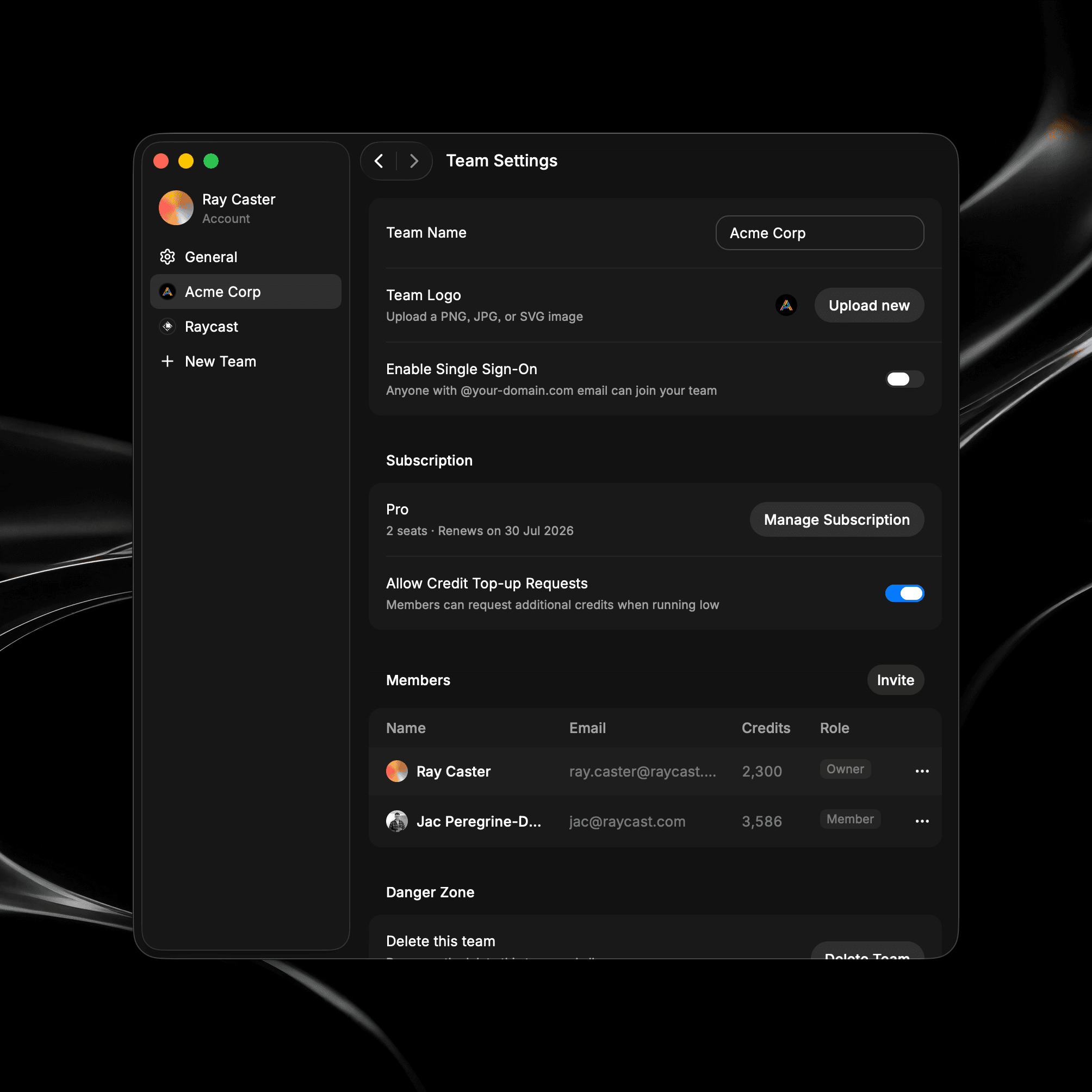
Create a Team
- Open Settings then click Create Team.
- Enter a Team Name, and optionally add a Team Logo (a PNG, JPG, or SVG).
- Click Create Team and you will see your Team Settings.
Creating a team and inviting people is free, and the Team Store is free while it's in beta. See Team Billing & Credits for how billing and credits work during the beta.
Invite Members
Once your team is created, invite the people you work with to build apps:
- In Settings, choose your team in the sidebar and scroll to Members.
- Click Invite, enter the team member's email address, and confirm. Glaze emails them an invitation.
- The invitee opens the invitation and joins the team. If they don't have a Glaze account yet, they will be prompted to create one first, then join the team automatically.
Invited people appear in the members list right away with a clock icon while their invitation is pending. For roles, expired invites, and removing people, see Members & Roles.
What a Team Gives You
- A private team store: Publish apps that only your team can find and install, separate from the Public Store. See Team Store.
- Members and roles: Invite people by email and decide who can manage the team. See Members & Roles.
- Shared membership and billing: The team keeps membership in one place. During the beta the Team Store is free, and building draws on each member's own personal credits. See Team Billing & Credits.
- Single Sign-On: Let anyone with your company email domain join automatically once you verify the domain. See Single Sign-On.
Team Store
Every team gets its own team store, a private collection of the apps your team builds and shares with one another. Only members of the team can browse and install from it, which is best to share apps like internal tools without appearing in the Public Store. See Team Store.
What Stays Personal
Joining a team doesn't change how you build with Glaze. Your projects and any apps you haven't shared stay yours alone; a team adds team store sharing and centralized billing on top. You can belong to more than one team, and each appears as its own tab in Settings.