
Store
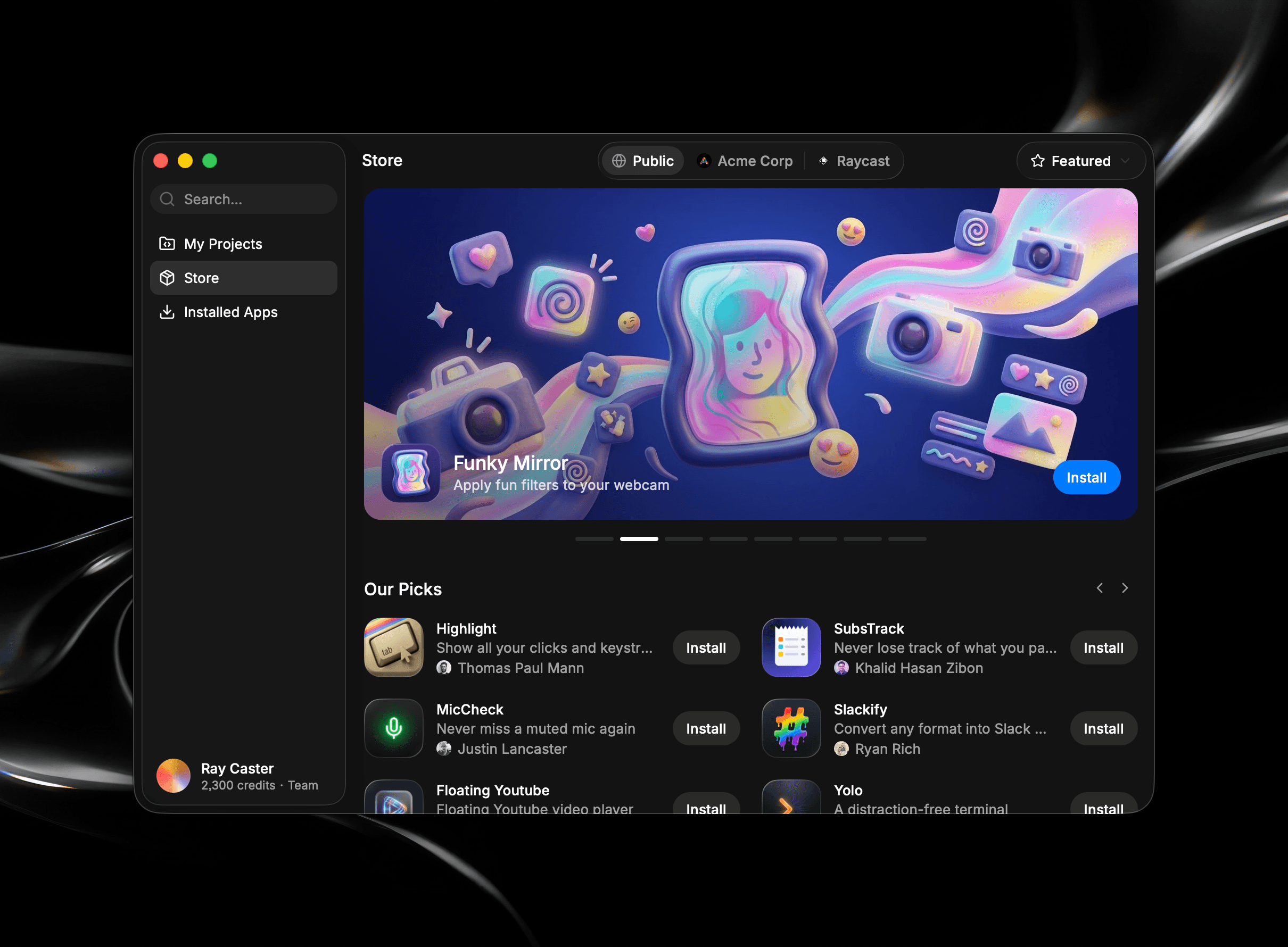
The Store is where you find apps other people have built and install them on your own Mac. You can browse a featured selection, filter by category, search by name, open an app to see what it does, and install it in a click, then update or remove it later just as easily.
Browse the Store
Open the Store tab to see what's available. By default you land on the Public store with the Featured view, a curated set of sections that highlight apps worth a look.
If you belong to one or more teams, a switcher is displayed on the toolbar. Toggle between Public and each of your teams to move between the open public store and your team's private one. See Visibility Levels for what each store contains.
Filter and Sort
The dropdown on the right of the toolbar changes with the store you're viewing:
- On the Public store, it's a filter. Stay on Featured, pick a category to narrow the list to one kind of app you're looking for, or choose Remixable to see every app you can build on. See Remix.
- On a Team store, it's a sort: Recently Updated, Newest, or Most Downloaded.
Search
To look for something specific, use the search box in the sidebar. As you type, the dropdown suggests matches grouped by where they live: your own projects, your teams, categories, and apps from the Public and Team stores. Pick a suggestion to jump straight to it, or open the full search to see every match.
If you would like to see all published apps from a specific author, click the Author name on the Store's detail page to open that creator's profile. From there, sort their apps by Most Downloaded (the default), Recently Updated, or Newest to find what you're looking for.
Detail Page
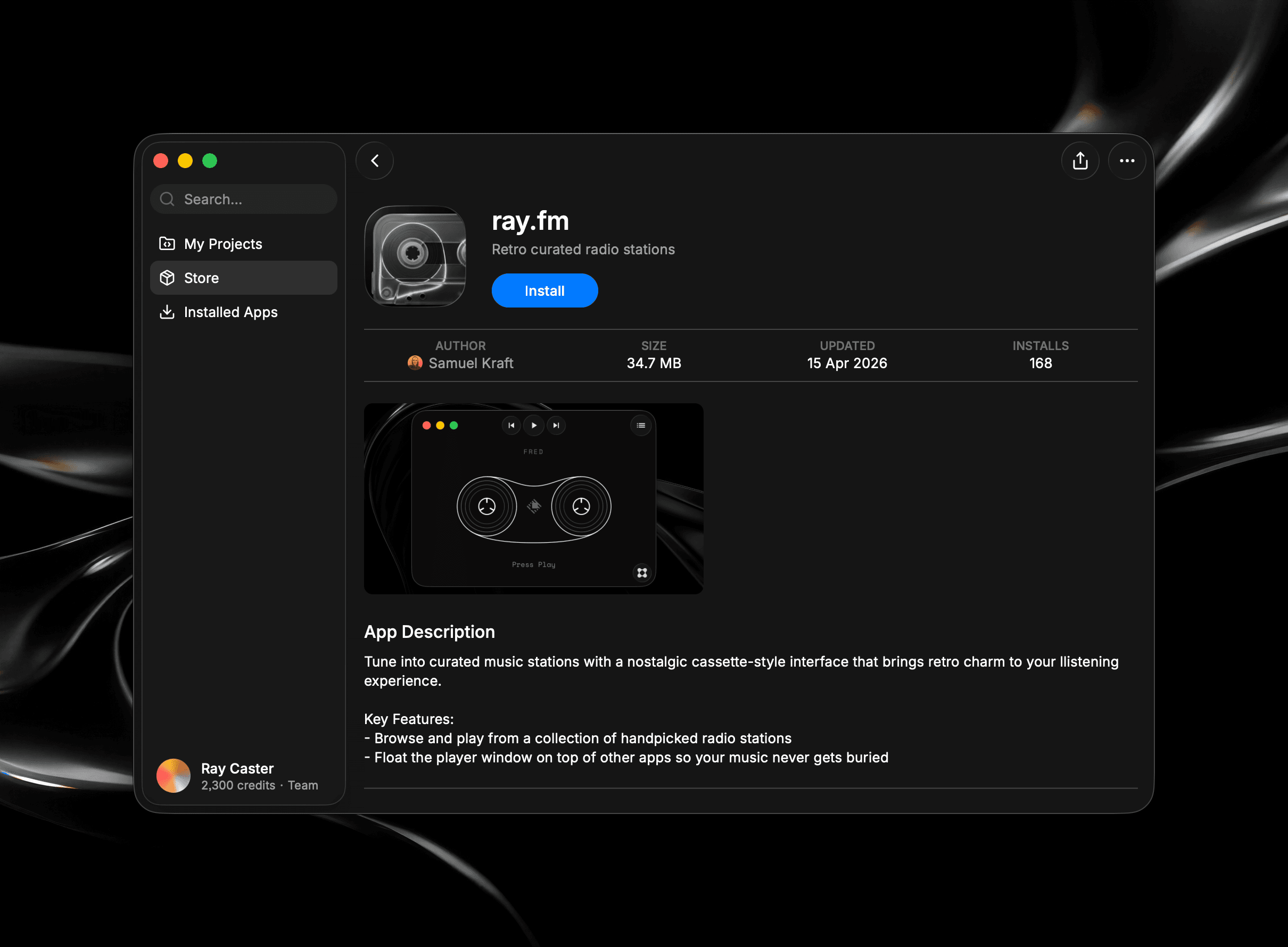
Selecting an app opens its detail page, the full listing the author prepared when they published the app:
- The app's name with a short tagline beneath it.
- For selected apps, a wide cover photo at the top of the page with the name, tagline, and Install button laid over it, and a Featured badge in the top-right corner.
- The metadata row with the Author, the app Size, a Published or Updated date, and an Installs count. The date reads Published for a brand-new app and Updated once there's been more than one version. This will also show the Store it came from if it was published to a team.
- A Uses Glaze AI label if the app uses AI, so you know before installing that some AI features in the app draws on your own Glaze credits. See AI.
- A Remix badge if the app is itself a remix of another app, linking back to the original where available. See Remix.
- Screenshots of the app in action.
- A What's New section with the latest release notes, and a Version History link to see how the app has changed over time. See Updates.
- The App Description explaining what the app does in full.
Install an App
Click Install on an app straight from the Store, or open its detail page. Once installed, the button becomes Open, and the app appears in the Installed Apps tab in the sidebar, where you can launch it any time. It's also added to your /Applications folder.
If you'd rather have your own editable copy of an app than just install it, choose Remix on its detail page to start a project from it. See Remix.
Leave Feedback
Found a bug or have an idea to make an app better? Your notes go straight to the developer who built the app, and there's no category to pick, Glaze sorts that out for you. Open the Share Feedback dialog from either place:
- From the Store: On the app's detail page, click Feedback next to Share.
- From inside an installed app: Use its Feedback menu (Share your feedback), its Dock menu, or, for menu-bar apps, the tray menu. If a window is open, Glaze first asks whether to attach a screenshot of it, choose Attach Screenshot or Don't Attach.
Describe what you ran into or what you'd like to see, then add supporting detail if it helps:
- Screenshots: Attach up to five images. Click Add Screenshot or drag and drop files in, then click one to preview it full size (arrow keys to step through) or remove it.
- Attach Logs: Toggle this on to include that day's log files, giving the developer more to work with. It's off by default.
- Share My Email Address: Toggle this on if you're open to the developer following up with you directly. It's off by default; when it's on, your email is included so the developer can reply.
Your feedback, including your name, goes to the app's author, so leave out personal, health, or confidential details; sending it means you agree to the Acceptable Use Policy (Learn More shows exactly what's shared). When you're ready, click Send Feedback (or press ⌘ ↵), and Glaze confirms with a Feedback Sent toast.
If the developer ships a version that fixes what you reported, Glaze emails you to let you know it's resolved and links you to the new version. See Publish Apps for how developers act on feedback.
Update and Uninstall
When an author publishes a new version of an app, the Update button shows on the app's Store detail page. You can also update apps you have installed from the Installed Apps tab in the sidebar, where apps with updates available show in a separate Updates Available group.
To remove an installed app, open the Installed Apps tab, right-click the app, and click Uninstall.