
Version History
Every change the agent finishes is saved as a version. That means nothing you build is ever lost, so you can experiment freely and step back to a version that worked whenever a change heads the wrong way.
How Versions Work
Each time the agent completes a change to your app, it saves the result as a new version. Your latest version is labeled Current, and earlier ones count down from there: v1 is your first version, then v2, v3, and so on. The list grows on its own as you keep prompting. There's nothing to save or commit by hand.
A version captures the whole app at that point, not just the files that changed. Rolling back restores everything to how it was, so you never end up with a half-reverted app.
Open History
Open version history from the toolbar at the top of Agent Chat. Click the Version History button to bring up the version list. The button is available once you have at least one version, and it's disabled while the agent is still working on a change.
The list shows your versions newest first, with Current at the top. Each row shows the description of what that version changed, so you can scan for the point you want to return to. If the history is long, type in the search box to filter by what changed or by a version's identifier.
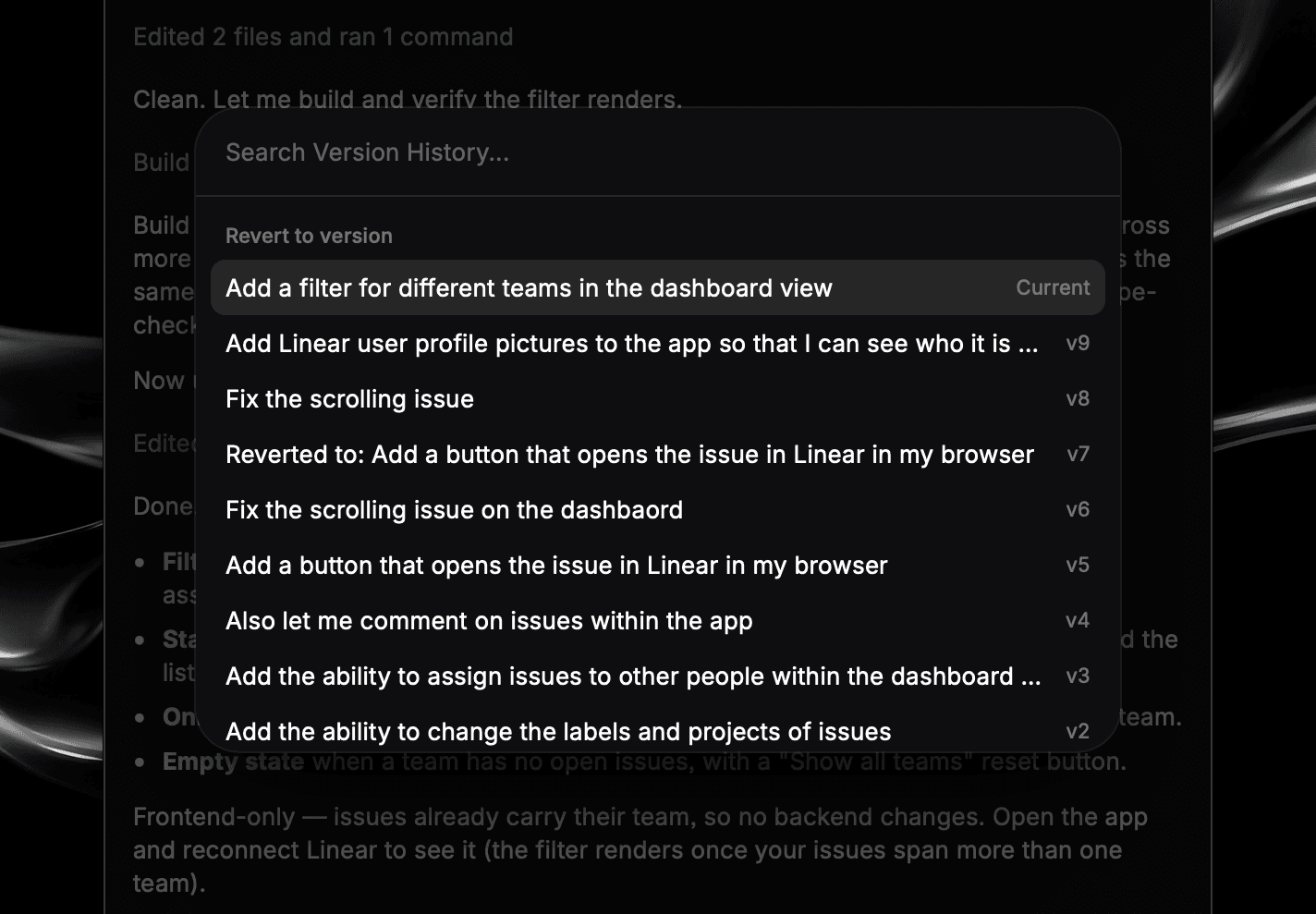
The descriptions come from the work the agent did, so clear, specific prompts give you a version history that's easy to read later.
Roll Back
- Click in the Agent Chat toolbar to open Version History.
- Select the version you want from the list. Selecting Current just closes the list, since you're already on it. Any earlier version opens a confirmation.
- Glaze asks you to confirm before changing anything. Choose Revert to restore your app to that version, or Cancel to back out.
- Your app is now restored to that version. Keep prompting from here, and new versions stack on top.
Recover a Broken App
If a prompt leaves your app broken or worse than before, you have two ways out.
- Keep correcting: Often the best fix is to tell the agent what went wrong in a follow-up message. It can usually repair the issue in place without a rollback.
- Roll back: If a change took the app somewhere you don't want, or several follow-ups haven't recovered it, return to the last version that worked and prompt again from there. This gives you a clean starting point instead of layering on top of a tangle.