
Settings
Settings is where you control how Glaze looks, how you summon the agent, and how the keyboard behaves while you build. To open Settings, click the avatar menu in the sidebar and choose Settings.
Account
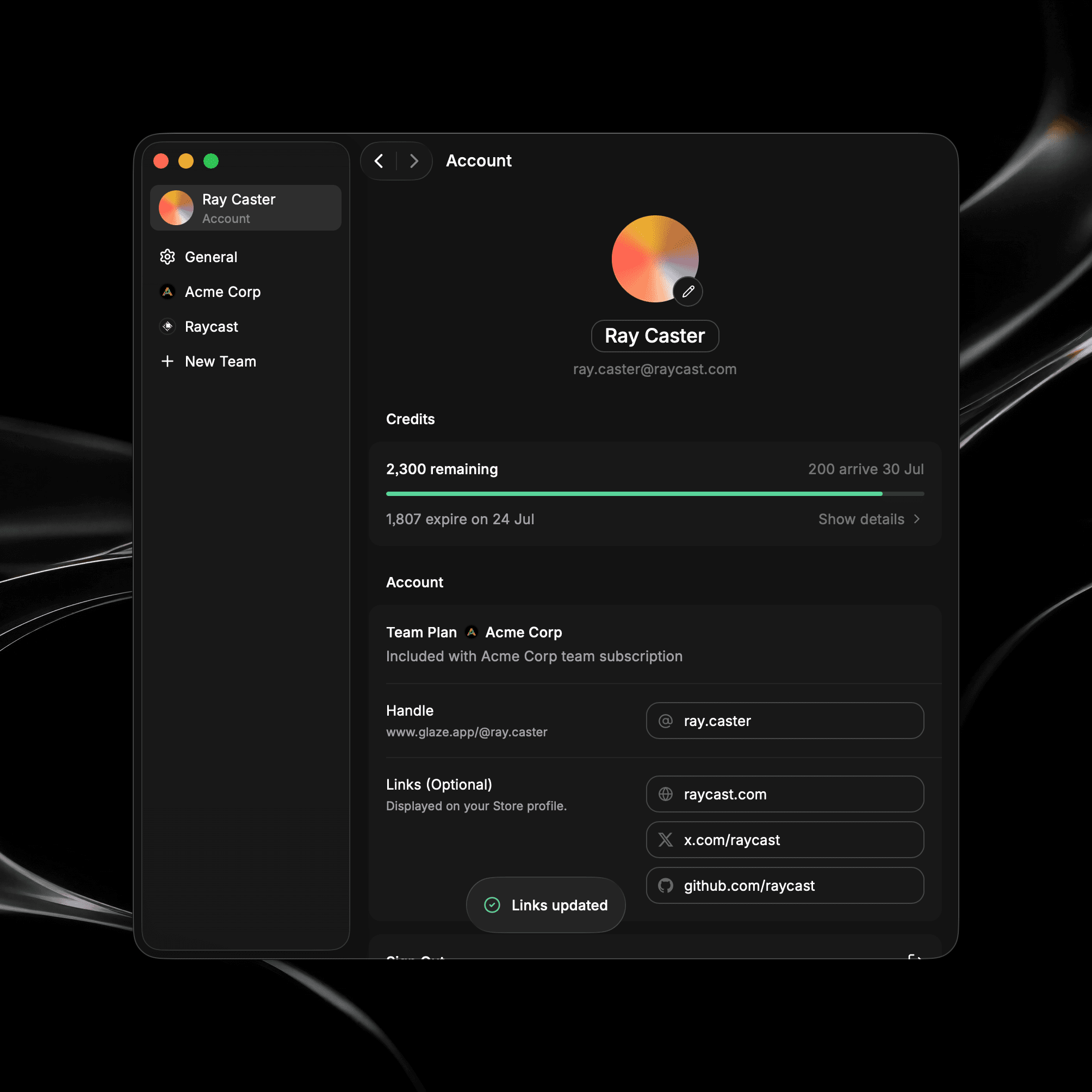
The Account tab displays your profile (display name and avatar), your plan, and your credits. For more information about your account, see Manage Account.
General
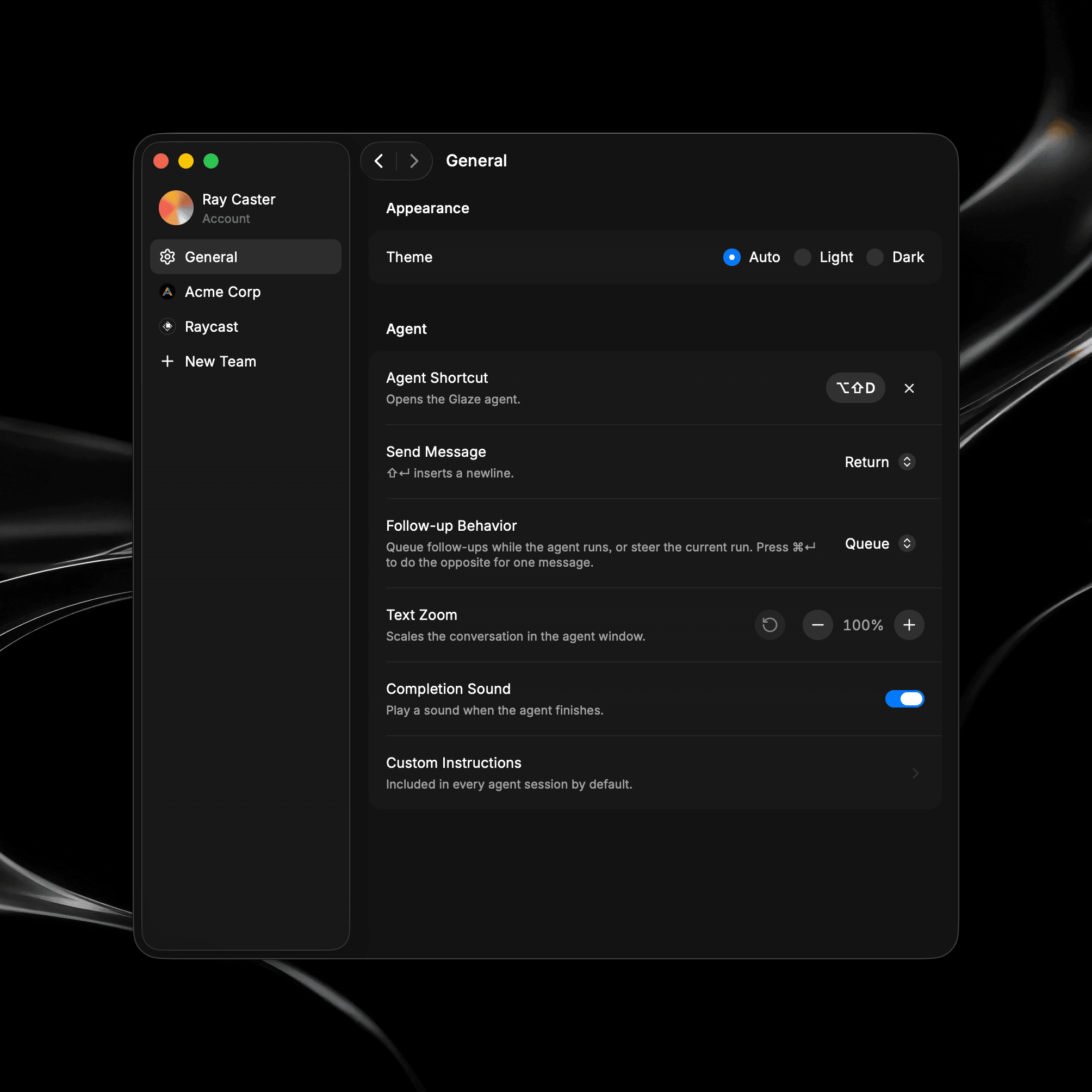
The General tab holds your appearance, project, and agent options. Appearance sets the app's theme, Projects Folder sets where your projects live on disk, and the Agent section holds the agent shortcut, the keyboard behavior in Agent Chat, the text zoom and completion sound, and your custom instructions.
Appearance
Under Appearance, choose the Theme for the Glaze app:
- Auto follows your Mac's system appearance, switching with it between light and dark.
- Light and Dark keep Glaze in that mode regardless of your system setting.
This theme controls the Glaze app's own windows. It does not change the look of the apps you build or use from the Store.
Projects Folder
Projects Folder is where Glaze keeps all your projects on disk, at ~/Glaze/ by default. Click Change… to pick a different location, or reveal the current one in Finder. Glaze doesn't support cloud-synced or network destinations for this folder. See Managing Your Projects for more on how projects are stored.
Agent Shortcut
The Agent Shortcut is a global hotkey that opens the agent from anywhere, even when Glaze isn't focused. There's no default, so it's blank until you set one.
- Record: Click Record and press the combination you want, such as
⌘⇧Space. Glaze saves it the moment you finish pressing the shortcut. PressEscwhile recording to cancel. - Change or Clear: Click the shortcut to record a new combination, or click to remove it.
Once set, pressing the shortcut opens the agent and readies it for a new prompt. If the combination is already used by another app, Glaze flags it as invalid or in use, so you can pick a different one.
Send Message
Send Message decides which key sends your prompt in Agent Chat:
- Return (Default):
↵sends the message, and⇧↵inserts a newline. - Command Return:
⌘↵sends the message, and↵inserts a newline.
Follow-up Behavior
When the agent is already running and you send another message, Follow-up Behavior decides what happens to it:
- Queue (Default): Your follow-up waits and runs after the current work finishes.
- Steer: Your follow-up interrupts the current run and steers the agent right away.
Whichever you choose, press ⌘ ↵ to do the opposite for a single message. See Iterating for when each is useful.
Text Zoom
Text Zoom scales the typography and spacing of the whole Agent Chat feed, so you can make the conversation larger or smaller to suit your screen. It runs from 75% to 200% in 5% steps, with a default of 100%.
- Zoom out: Click to shrink the conversation by one step. It's disabled at 75%.
- Zoom in: Click to grow the conversation by one step. It's disabled at 200%.
- Reset: Click to return to 100%. It's disabled when you're already at 100%.
The percentage readout between the buttons shows the current zoom. Changes apply immediately, with no restart needed.
You can also adjust the zoom directly from the Agent Chat window: press ⌘ + to zoom in, ⌘ - to zoom out, and ⌘ 0 to reset to 100%.
Completion Sound
Completion Sound plays a sound when the agent finishes a task in Agent Chat. It's on by default, and turning it off will not play any sound from the agent.
Custom Instructions
Custom Instructions are notes the agent includes in every session by default, such as a coding preference or a style you want across your apps. Click Custom Instructions to open the editor, write your instructions, and choose Save. They apply to new work going forward, so you don't have to repeat yourself in each prompt.
AI Access
The AI Access tab lists every app you've granted permission to use AI. For each app you can see its AI usage and daily cap, and you can revoke its access at any time. Revoking an app's access here and it stops using AI until you allow it again.
Daily cap allows you to limit how many credits a Glaze app can use a day from your credit allowance for AI-powered features. You can increase or lower the cap depending on your use case, and each app receives its own individual daily cap of credits.
An app is added to this list the first time you grant its AI permission prompt. For how apps use AI and how it's billed against your credits, see AI.
Teams
If you belong to one or more teams, each Team gets its own tab here for managing that team, and a New Team option lets you create one. See Get Started with Teams for how Glaze Teams work.