
Annotate
Sometimes the fastest way to say what you want changed is to point at it. Annotate lets you mark up your live, running app, selecting the exact element you mean, so the agent knows precisely what you're talking about without you describing where it is in words.
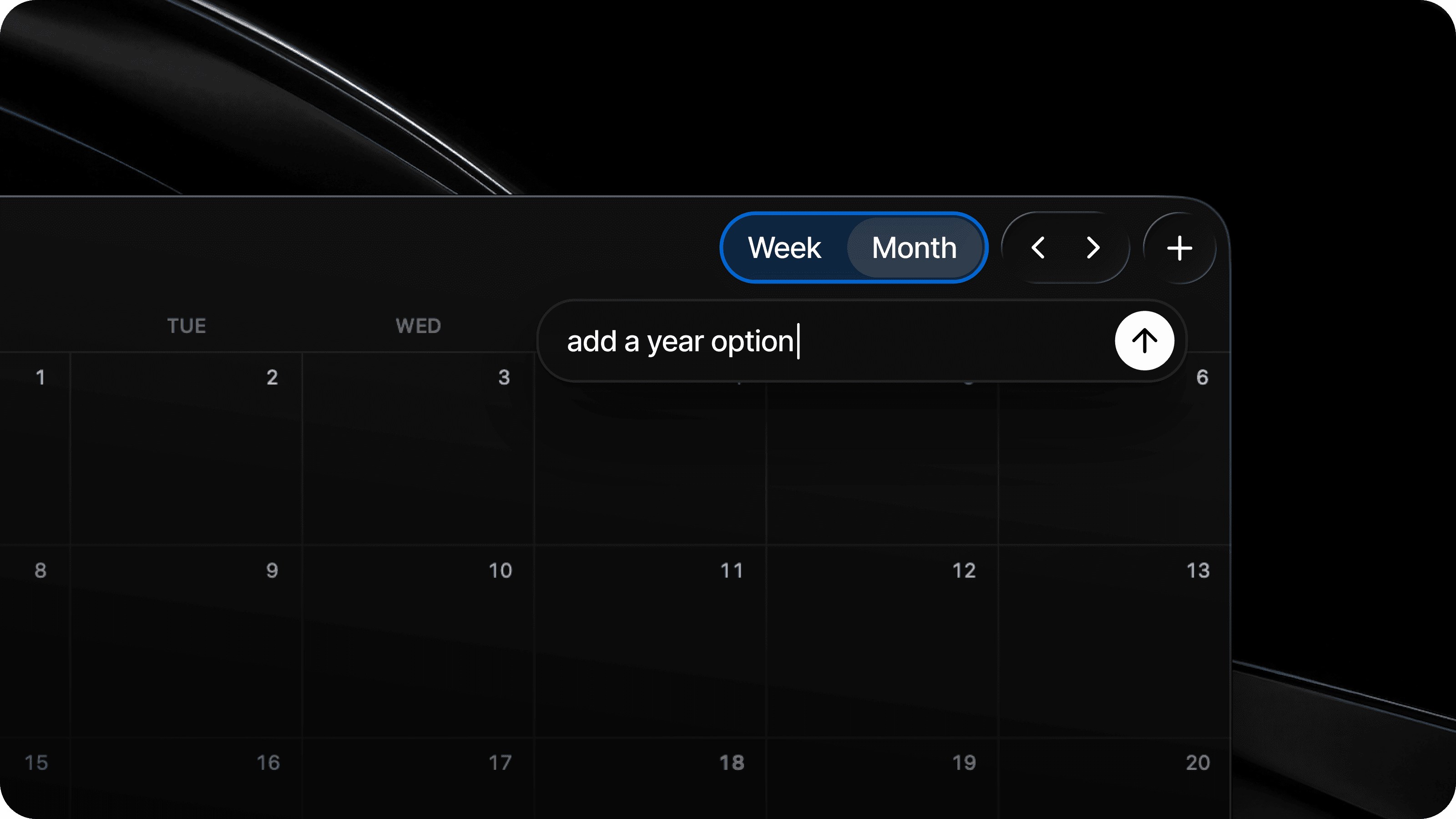
What is Annotate
When you annotate, Glaze lets you pick an element directly in your running app: a button, a heading, a list row, a whole panel. Glaze captures exactly what you pointed at and sends that to the agent along with your message. Instead of "the small button in the top-right of the second card," you just point at it.
Because the agent receives precisely which element you selected, it spends less effort guessing and more on the change itself. It also helps with credit usage since it has more context for the change you'd like to make.
Annotating becomes available once your app has been built at least once, since there needs to be a running app to point at. On a brand-new project, build something first, then annotate it.
Start an Annotation
With your app running, start annotating from the Agent Chat composer:
- Click the Annotate button next to the composer, or press
⌘.. The button highlights to show annotating is active. - Move your pointer over your running app. Glaze highlights the element under it. Click the one you want to talk to the agent about.
- Add your instruction, such as "make this bigger" or "use the accent color here," and send it. The agent gets your words plus the exact element you picked.
To leave annotating without selecting anything, press ⌘ . again or click the button to turn it off.
You can start annotating from your running app too, not only from the chat. However you begin, the selection lands in the same place: your next message to the agent.
Fine-Tune with Inspector
Once you've picked an element, you don't have to describe every visual tweak in words: you can nudge it directly. The annotation composer shows a Inspector toggle that expands a panel of controls for the element you selected, with a live preview on your running app.
From the Inspector you can adjust:
- Size: Width and height, for image- and icon-like elements.
- Typography: Font size, line height, bold, italic, underline, strikethrough, and text alignment.
- Padding: Adjust the spacing on all sides at once, or expand it to set each side individually.
- Radius: Adjust corner rounding, or expand it to set each corner individually.
- Text Color and Background Color: Pick a color for either.
Your changes preview on your running app right away, but they aren't permanent until you send. Glaze bundles them with your typed instruction and sends both to the agent together as a summary of the visual changes you made.
The Inspector isn't a separate tool: it's an extra panel inside the same annotation composer you use to point at an element and type an instruction. Point at the element, optionally open the Inspector to nudge its style, then send.
Edit a Queued Annotation
If you annotate while the agent is busy, that pin waits its turn in the queue, the same way a typed follow-up does. See Queue Follow-Ups. You can change your mind before it runs:
- Edit it: Hover a queued pin in your running app — the marker shows . Click it to reopen the annotation panel with your comment already filled in. The send button becomes Save, so your edit updates the queued message in place, keeping its spot in the queue.
- Delete it: In that same panel, click Delete to remove the queued annotation from the queue instead.
Edits and deletions stay in sync with the queue in Agent Chat, so whichever surface you use, the two always match.
When Annotating Beats Words
Reach for annotation whenever the change is about a specific spot on screen and pointing is clearer than describing:
- Hard-to-name elements: The third icon in a row, one cell in a grid, a label buried in a dense layout.
- Visual tweaks: Spacing, size, color, or alignment of one particular thing.
- "This, not that": When several parts of the app look similar and you need to be sure the agent changes the right one.
Plain prompts are still best for changes that aren't tied to one place, like adding a feature, changing behavior, or describing the app as a whole. Annotation and a written prompt work together: point at the element, then type what you want done to it.
Annotating is one of the tools for Iterating. It's also a quick way to show the agent exactly where a problem is when something looks wrong; see When the Agent Gets It Wrong.