
Agent Chat
Agent Chat is where you build your app. You write your prompts in the composer at the bottom, the agent responds and works in the same view, and a feed shows each step as it goes. From the composer you can add context, attach images, and line up follow-up messages while the agent works.
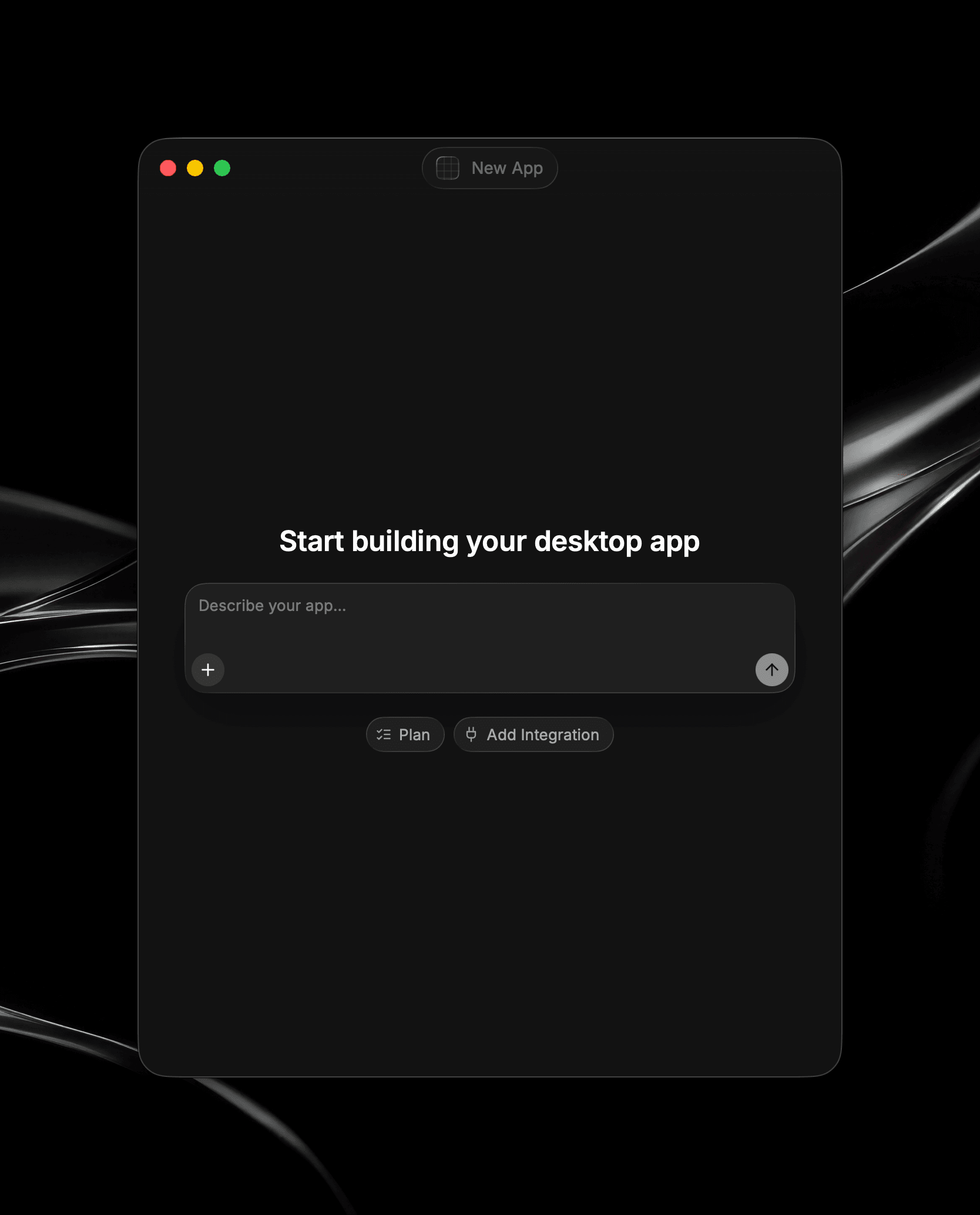
The Composer
Type your prompt in the composer and send it, or click the send button (the up arrow) to its right. While the agent is running, that same button becomes a stop button. See Iterating.
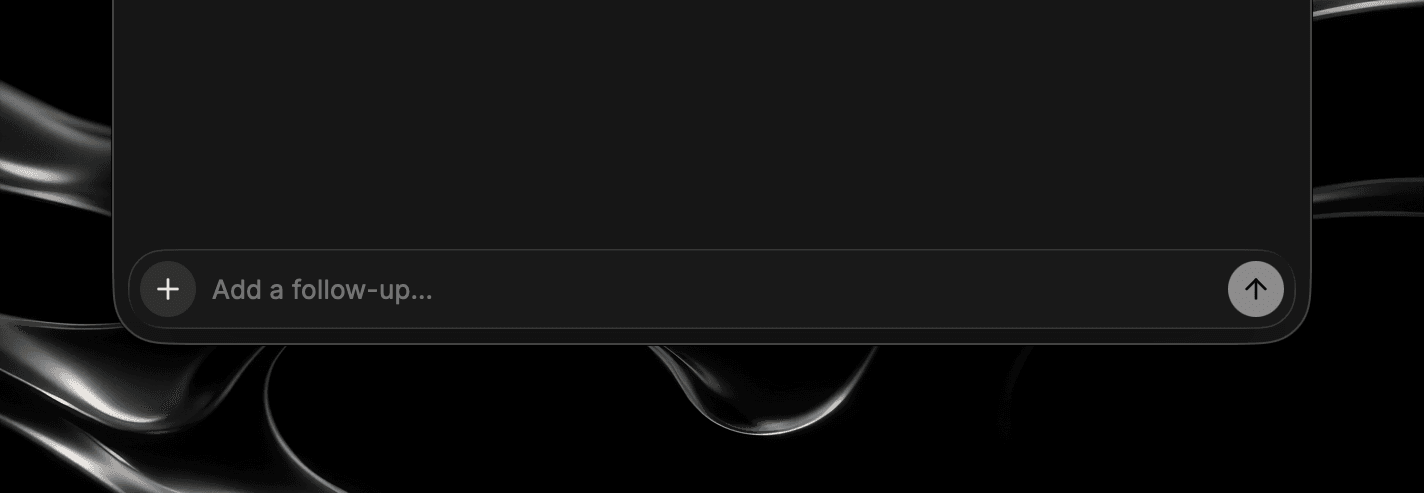
Prefer a different key to send? You can change how the keyboard sends and steers your messages in Settings, under Send Message in the General tab.
Recall Past Prompts
With the composer empty, press ↑ to bring back your previous prompt, and ↑ again to step further back through what you've sent. Press ↓ to move forward again. This is handy for resending a prompt with a small tweak.
Choose a Model
The composer has a model picker where you choose which model builds your app:
- Glaze Fast: A leaner, faster option that uses fewer credits. It's available on every plan, including Free.
- Glaze Smart: Glaze's fuller workflow using our most capable models, for tougher builds. Glaze Smart is included with Pro.
- Your connected Claude models: Once you connect a Claude subscription, models such as Opus, Sonnet, and Fable appear here too, and building with them uses your Claude subscription instead of Glaze credits.
Your model choice is remembered per project, so each app keeps building with the model you picked for it until you change it.
Building with a connected Claude model is a beta feature and works a little differently from Glaze Fast and Glaze Smart. See Bring Your Own Agent.
Add Context Menu
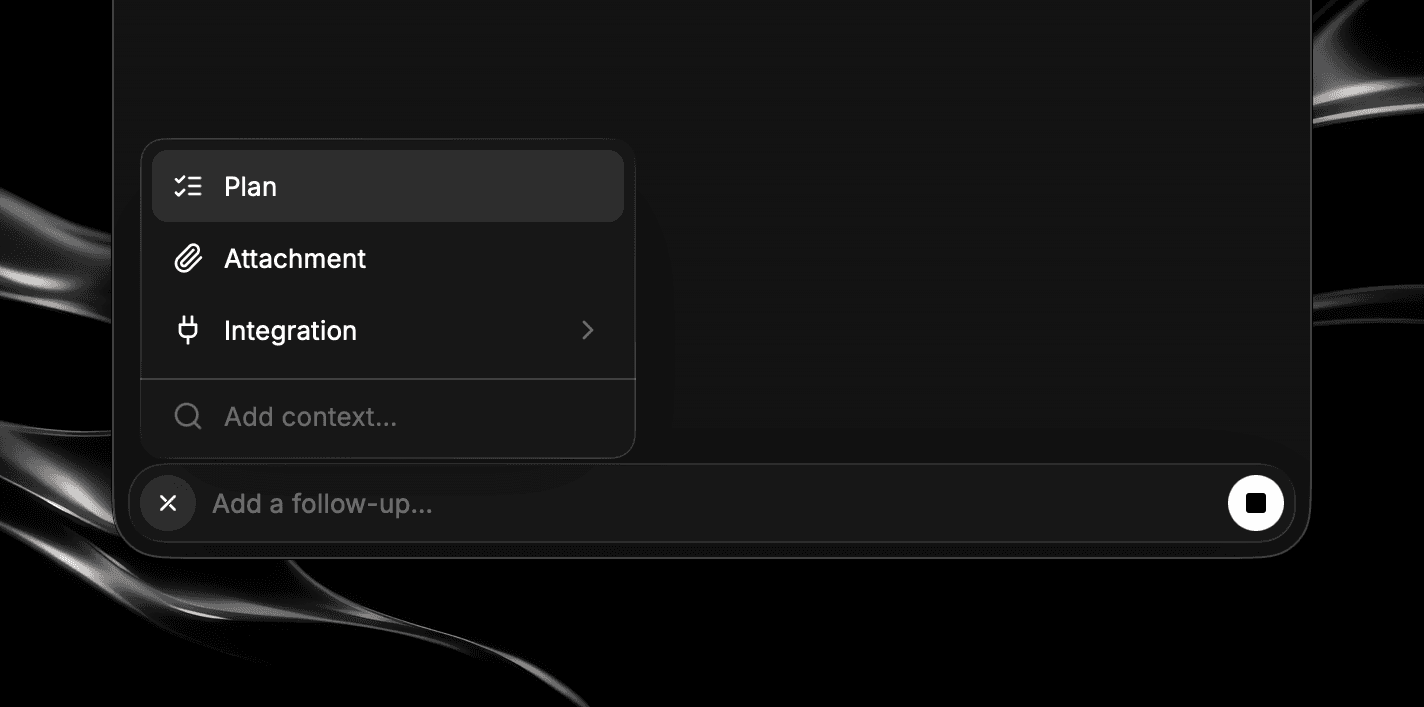
The button to the left of the composer opens a menu where you add context to your next prompt. This menu contains:
- Plan: Turn on Plan mode so the agent agrees on an approach with you before writing code. See Plan & Build Modes.
- Attachment: Pick an image from your computer to attach as a reference.
- Integration: Connect your app to an outside service. Choose GitHub, Linear, Slack, or Other OAuth Provider from the menu, and the agent sets up the connection as it builds your app. See Integrations Overview.
Annotate Your App
The composer has an Annotate button for pointing at parts of your app you'd like to tweak or change, so the agent knows exactly what you mean instead of describing it. See Annotate.
Attach Images
Images are the fastest way to show the agent what you mean, whether it's a screenshot of something to fix, a design to match, or a mockup to work from. There are three ways to attach an image:
- Paste it: Copy an image and paste it straight into the composer.
- Pick a file: Open the menu and choose Attachment, then select an image from your computer.
- Drag it in: Drag an image from Finder onto the chat.
Attached images appear as thumbnails above the composer. Click one to preview it, or remove it before sending. Combine an image with words for the clearest direction, such as a screenshot plus "make this button match the others."
For pointing at part of your running app rather than attaching a separate image, use the annotation tool. See Annotate.
Queue Follow-Ups
You don't have to wait for the agent to finish before lining up your next message. While the agent is running, type a follow-up and send it, and it joins a queue that runs after the current turn.
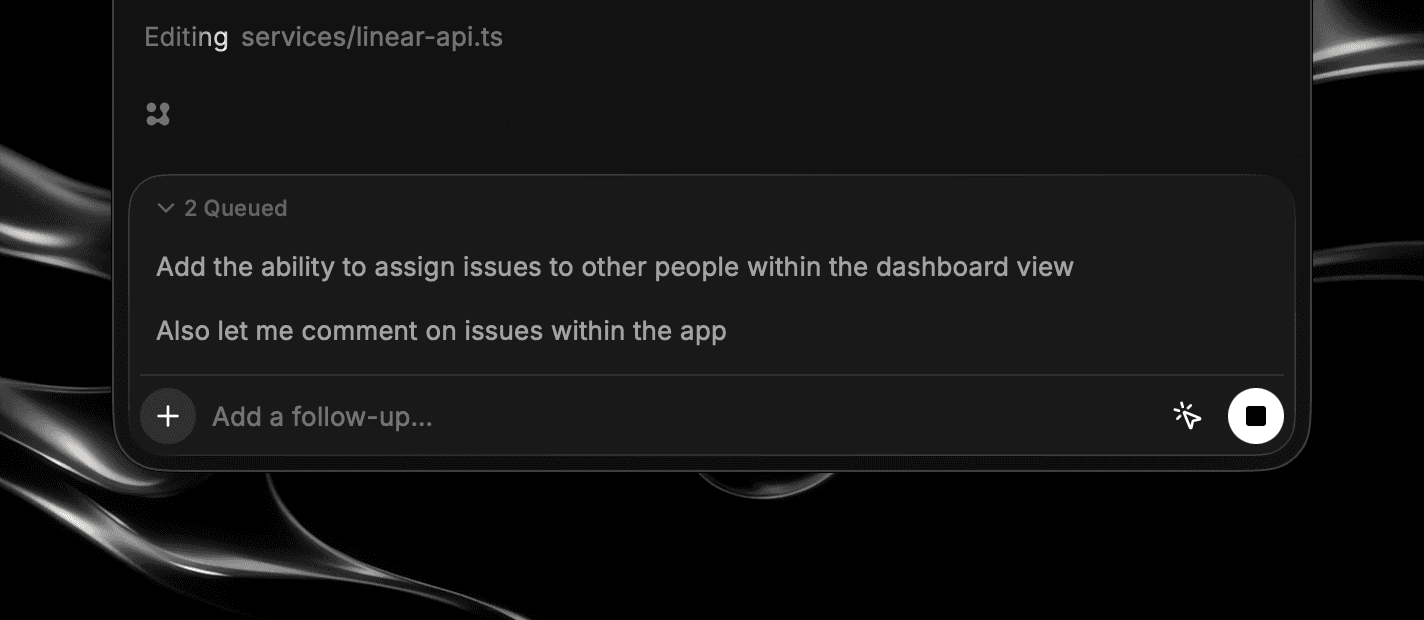
Queued messages collect just above the composer under a Queued count. Hover one to reveal its controls:
- Edit Message: Pull the message's text back into the composer to change it. When you resend it, it returns to the queue in its original spot rather than the back.
- Steer: Move the message ahead so it runs next.
- Delete: Remove the message from the queue.
To reorder the queue, drag a message by using , or focus the handle and use the arrow keys. Reordering is available once you have more than one message queued. This lets you think a few steps ahead while the agent works through the current step.
Want your message to redirect the agent right away rather than wait in line? That's steering, and you can switch the behavior of the send key while the agent is busy. See Iterating.
Your Draft Is Kept As You Work
Your in-progress message stays put as you move around the chat, so a half-written prompt isn't lost if you glance at the feed or switch views. To clear a draft you've decided against, select the text and delete it.