Approvals
As the agent works, it sometimes pauses to check in with you. It might ask a clarifying question when your prompt leaves something open, or request your approval before completing a sensitive action. Both appear right in the Agent Chat, and the agent waits for your answer before continuing so nothing significant happens without your say-so.
Clarifying Questions
If your request is unclear, the agent asks rather than guesses. A question appears in the chat with a short list of options to choose from, so you can steer the work without breaking your flow.
- Read the question and options. The agent states what it needs to know and offers a few options, each with a short description. For a single-choice question it suggests a sensible default, already selected, so you can move on quickly if it's right.
- Choose the option you want. Some questions let you select more than one (you'll see "Select all that apply"). If none of the options fit, choose Other and type your own answer.
- Choose Confirm to send your answer. If the agent asked a few questions at once, you'll step through them with Continue, then confirm on the last. To skip answering, choose Dismiss.
Answering with a clear choice is faster than typing, but Other is there when your preferred answer isn't on the list. Use it whenever the options don't capture what you actually want.
Permission Requests
Glaze apps are local-first, and the agent works within your project. When a step would reach outside that project, the agent stops and asks before going ahead so nothing happens beyond your project without your say-so.
You'll see a permission request when a step would, for example:
- Read or write files outside your project, such as somewhere else on your Mac.
- Run a command that touches something sensitive beyond the project folder.
The request shows a short reason and, when there's one, the exact file path or command involved, so you can see precisely what's being asked.
Allow or Deny
A permission request gives you two choices:
- Allow lets the agent take that one action and continue.
- Deny stops that action. The agent carries on without it, usually finding another way or telling you it couldn't proceed.
Each request is a one-time decision about that specific action. Allowing one step doesn't hand the agent open-ended access; the next sensitive action asks again.
Read what's being requested before you allow it. The reason and the path or command are there so you can decide with the full picture, especially when a step would write outside your project or reach the network.
Approve a Plan
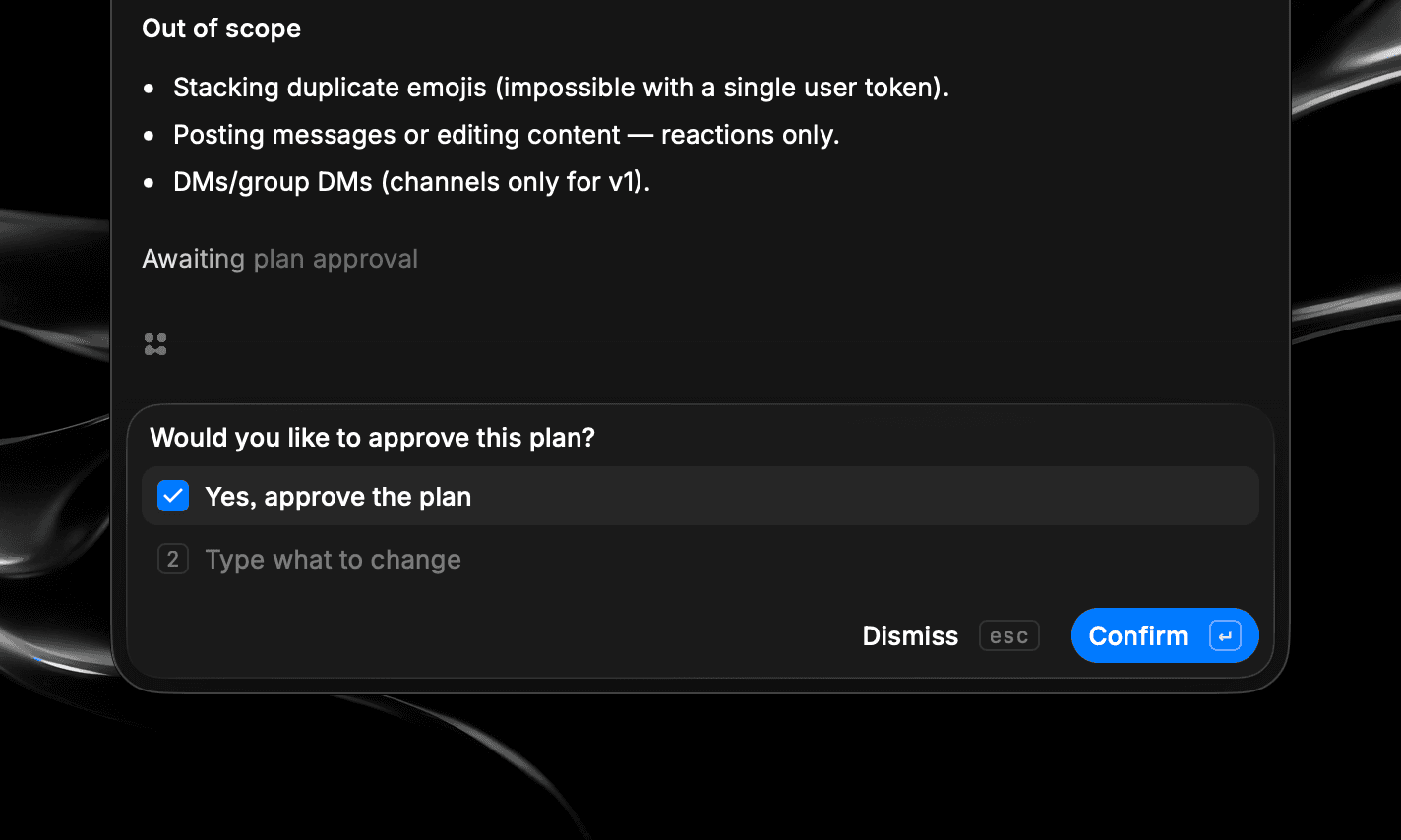
In Plan mode, the agent settles the approach with you before writing any code. When it's ready, it presents the plan and asks "Would you like to approve this plan?"
- Choose Yes, approve the plan and the agent switches into Build mode and carries it out.
- Not ready to approve? Use the Ask for changes or clarification field to reply in your own words. If you ask a question, the agent answers and presents the same plan again so you can decide with a clearer picture. If you request a change, the agent revises the plan and shows the new version. Either way it holds off on building, and the plan card updates in place, so you can refine or ask as many times as you like before committing.
Approving a plan is your checkpoint on bigger or riskier work: you agree on the shape of the change first, then let the agent build it. For when to plan first and when to build directly, see Plan & Build Modes.