
Plan & Build Modes
The agent works in two modes. Build mode makes changes directly, and Plan mode agrees on an approach with you before any code is written. Build is the default and the fastest way to iterate; Plan is worth reaching for on bigger or riskier changes.
Build mode
In Build mode, the agent reads your prompt and starts working right away: it plans the work, writes the code, installs what it needs, and runs the app, showing each step in the chat. This is the default, and it's the right choice for most prompts, especially small, clear changes where you'd rather just see the result.
You don't have to turn anything on. Open a project, describe what you want, and the agent builds it in your app.
Plan mode
In Plan mode, the agent holds off on writing code. Instead it thinks through your request and proposes a plan: what it intends to do and how, laid out for you to read. Nothing changes in your app until you approve it.
This is useful when:
- The change is large or touches several parts of the app.
- You want to confirm the approach before spending credits building it.
- You're not sure the agent has understood the goal and want to check its thinking first.
- A change is risky and you'd like to agree on the direction before anything moves.
Turn On Plan mode
Click in the composer and choose Plan, or press ⇧ Tab to toggle modes. A green Plan pill appears in the composer to show the mode is on. Then send your prompt as usual, and the agent responds with a plan rather than a finished change.
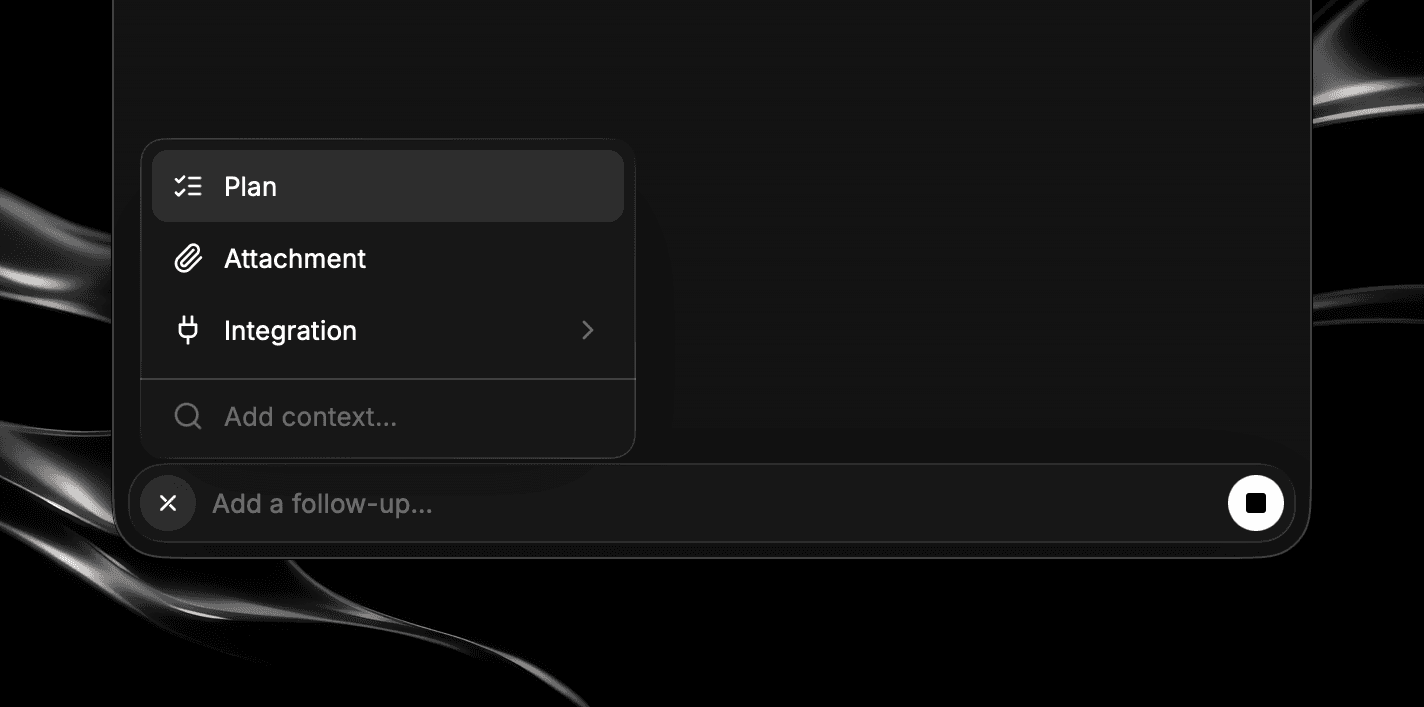
⇧ Tab flips between Plan and Build, so you can switch in a keystroke without reaching for the menu. To leave Plan mode, you can also remove the Plan pill from the composer.
Review and Approve a Plan
When the agent finishes planning, it presents the plan in the chat and asks "Would you like to approve this plan?" You have a few choices:
- Approve it: Choose Yes, approve the plan and Confirm, and the agent switches into Build mode and carries the plan out.
- Ask for changes: Choose Type what to change, describe what you'd like different, then Confirm. The agent revises the plan and asks again.
- Dismiss it: If you've changed your mind, choose Dismiss and the agent stops without making changes.
Reading the plan first is the whole point of the mode, so take a moment with it. If anything looks off, it's better for credit usage to correct the plan than to build the wrong thing and redo it.
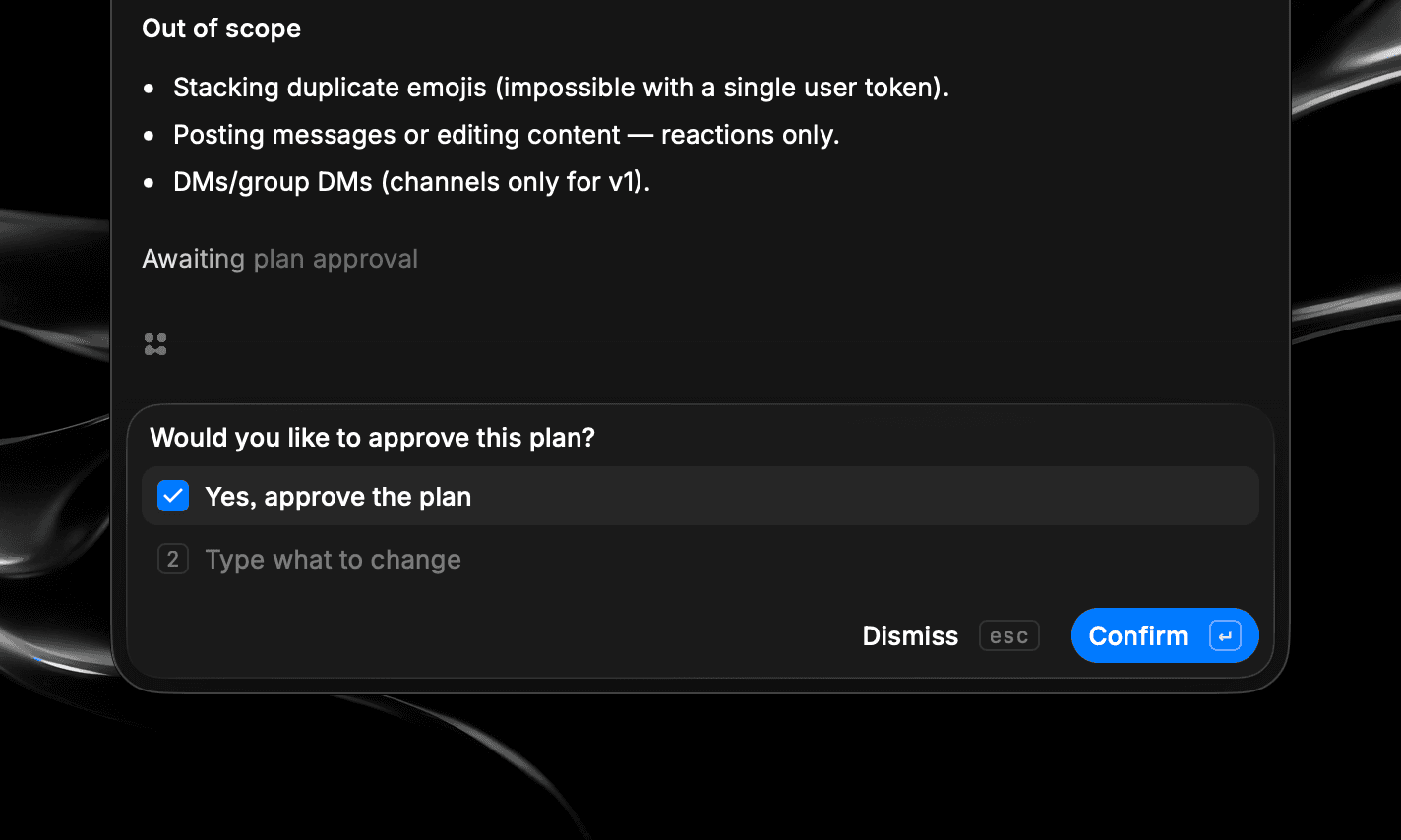
Approving a plan automatically switches you back to Build mode, so the agent can execute it. Your next prompt runs directly in Build mode unless you turn Plan mode on again.
Switch Between Modes
You're never locked into a mode. Switch with ⇧ Tab or before sending a prompt, as often as you like. A natural rhythm is to plan the big, structural changes and build the small ones directly:
- Turn on Plan mode for a significant new feature and review the plan.
- Approve it, and the agent switches into Build mode, carries the plan out, and leaves you in Build mode.
- Make a string of small tweaks directly in Build mode.
- Reach for Plan mode again when the next big change comes up.