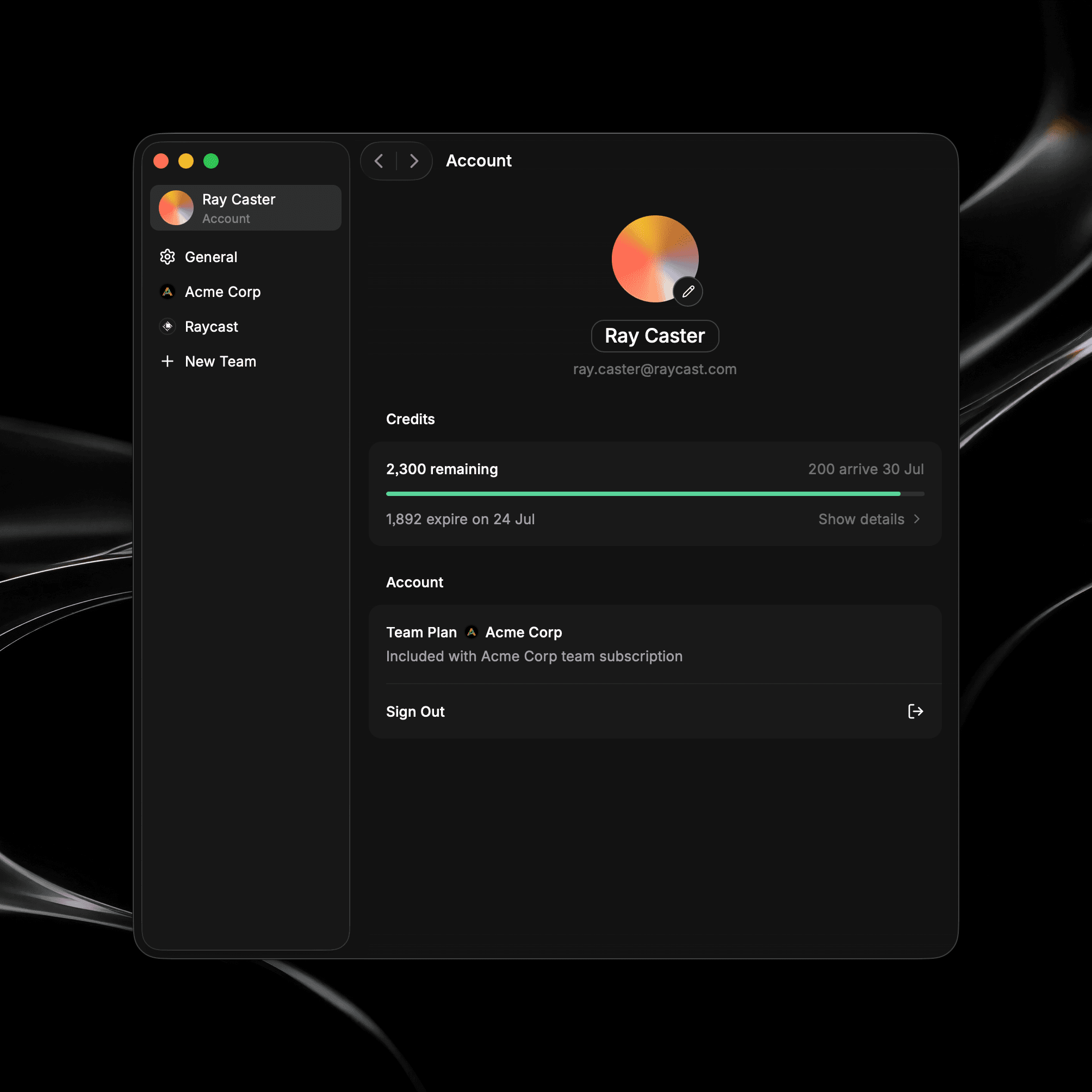
Glaze Dashboard
The dashboard is the first thing you see when you open Glaze. It's home for everything you build: your projects, the Store, and where you create a new app.
The Sidebar
A sidebar runs down the left of the main window, with a search box at the top and four places to go:
My Projects
Everything you've created. Open, edit, rename, and manage your projects from here.
Store
Discover and install apps other users have shared, or browse your private Team Store.
Installed Apps
Browse and manage all Glaze apps you have installed.
Creator Hub
See how your published apps are doing, with installs, active users, Store conversion, and feedback.
At the bottom of the sidebar is the Account Menu. Click your avatar to sign out, open Settings, Send Feedback, or join the Slack Community. See Manage Account.
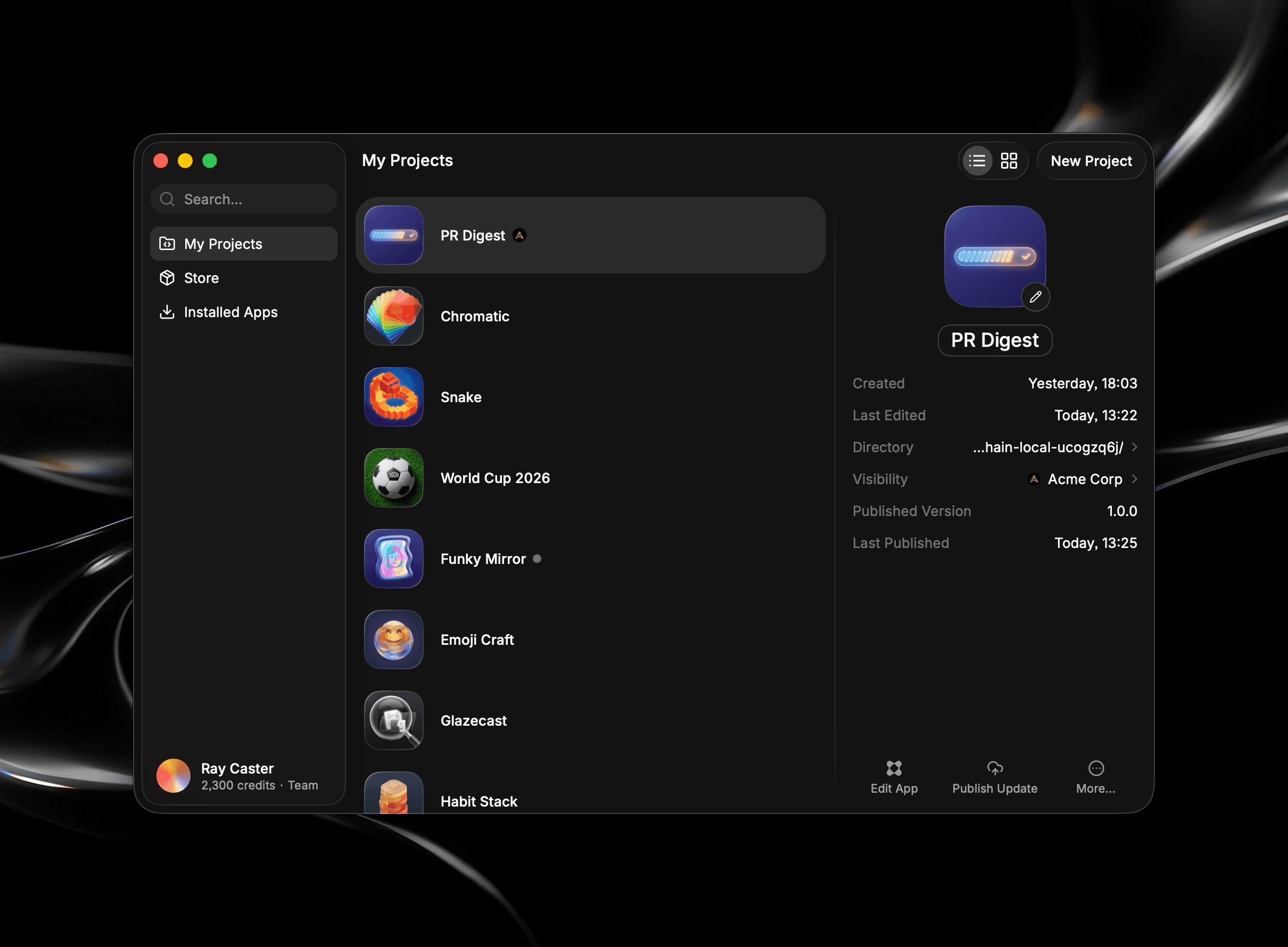
My Projects
My Projects is where your projects live. Each project shows its icon and name, and you can view them two ways using the toggle in the toolbar:
- List view shows your projects in a column.
- Grid view lays them out as a wall of icons.
Detail Panel
The detail panel gives you a full overview of an app's metadata. At the top of the detail panel is the app's icon (with a pencil button to generate or upload a new one) and its name, which you can edit in place. Below that, you will see more metadata, including:
- Created and Last Edited dates
- Directory: The project's folder on your Mac, which you can click to reveal in Finder
- Visibility: Whether the app is Unpublished, on the Public Store, Unlisted, or shared with a Team
- Published Version and Last Published: Shown once the app has been published to a Store.
A toolbar at the bottom of the panel holds the actions you reach for most: Edit App to open Agent Chat, Publish, and a More… menu with other actions. For what each of these does, see Managing Your Projects.
When you publish an app, a small status dot appears on its item entry while it's being reviewed, with states like Draft submission, Review in progress, Review passed with warnings, or Review failed. See Publish Apps.
Start a New Project
The New Project button sits in the toolbar, and the shortcut ⌘ N does the same thing from anywhere in the app. When the button or shortcut is pressed, Agent Chat opens where you describe the app you want and the agent creates it.
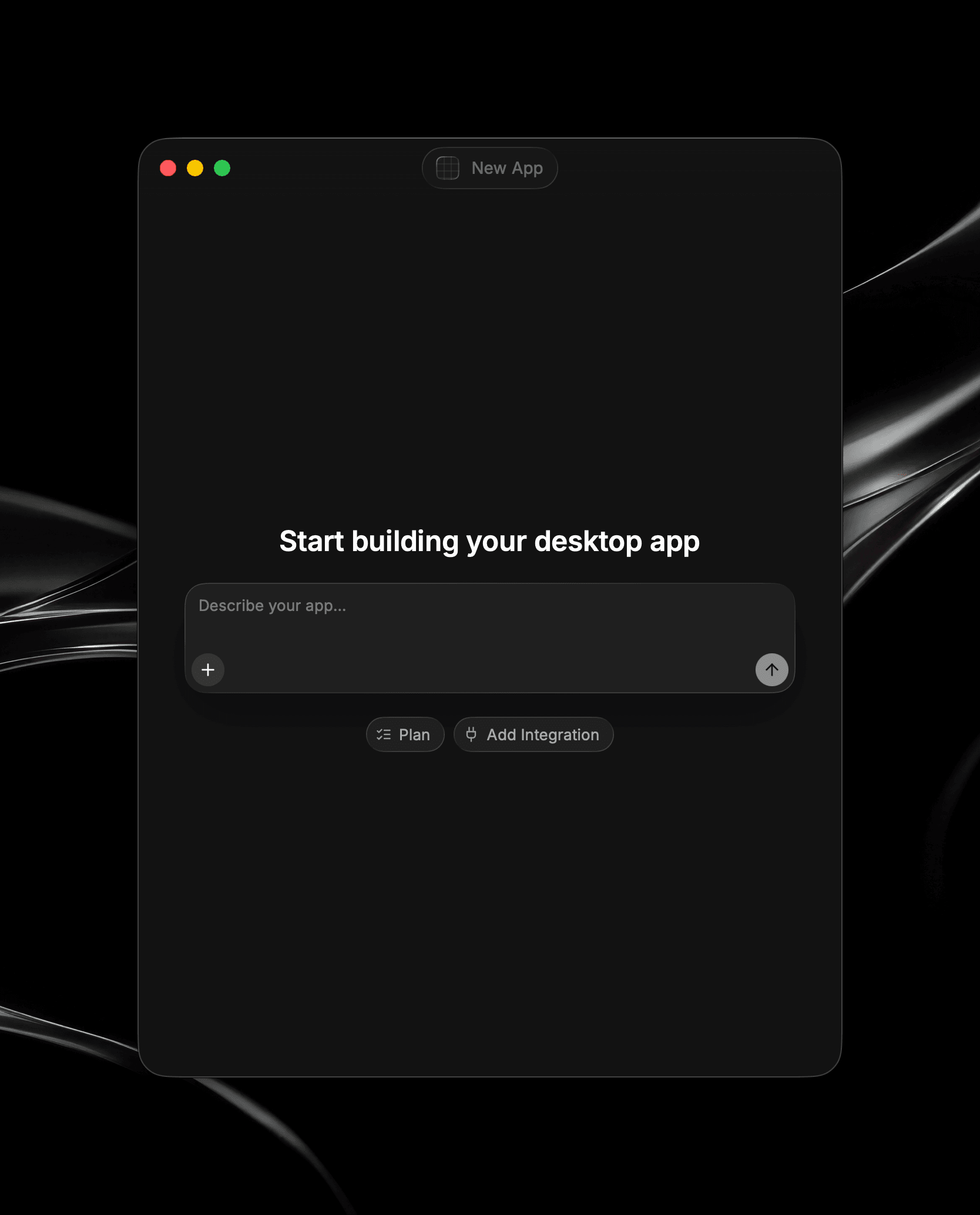
You can also set a global Agent Shortcut that opens the agent even when Glaze isn't focused. See Settings.
Agent Chat opens in its own window, separate from the main Glaze window, so you can keep creating your app and the dashboard is accessible for other actions. See Agent Chat for how the conversation works.
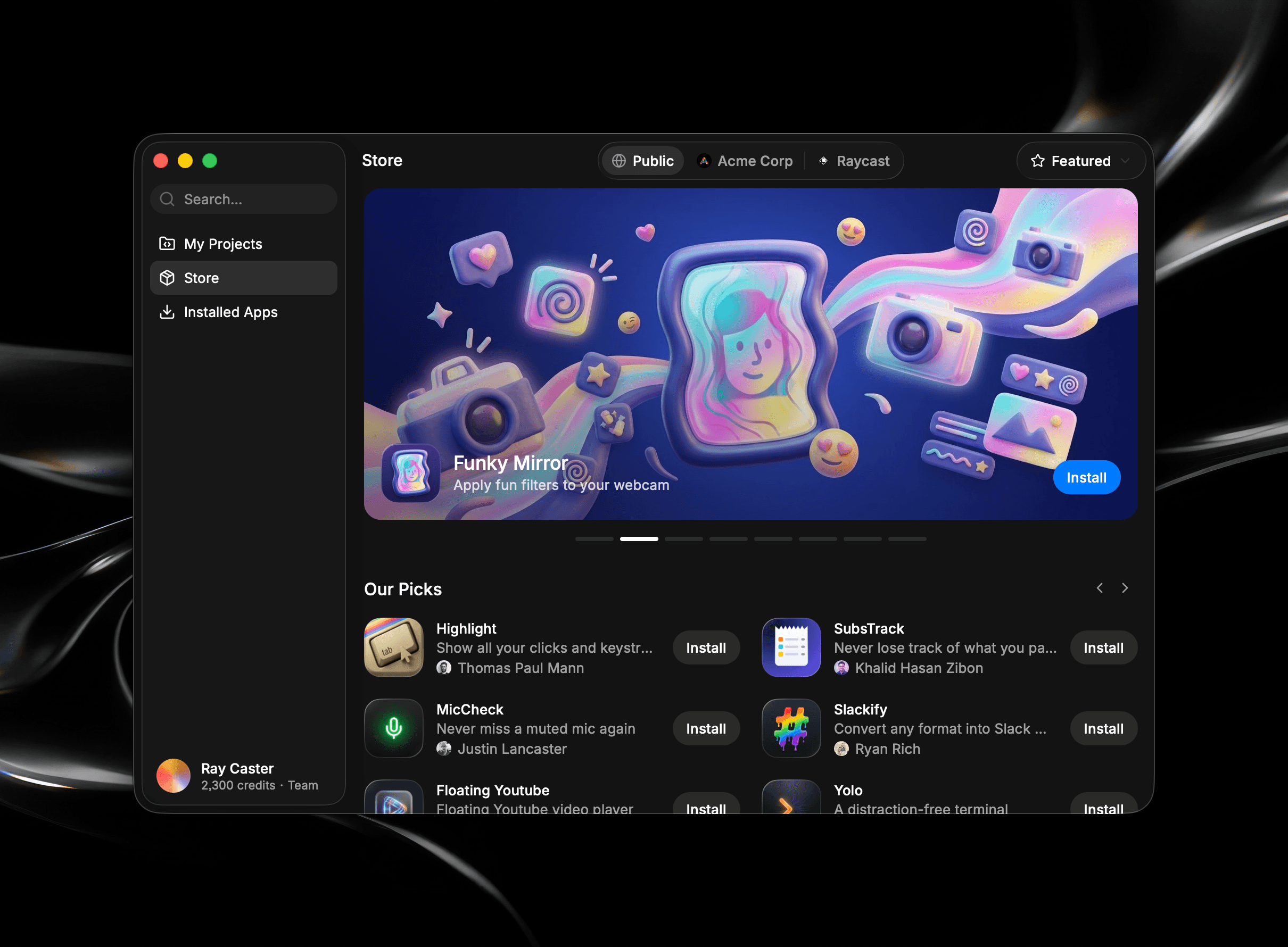
Store
The Store is where apps are shared and discovered by other Glaze users. Browse what others have published, install something that fits what you need, or find your team's private apps in the Team Store. When you create something worth sharing, you publish it here too. See the Store page and Publish Apps.
Settings
Open Settings from the Account Menu at the bottom of the sidebar. Settings opens a separate window with tabs for Account, General, and any teams you belong to.
The General tab is where you set the app's theme, agent shortcut, and how the keyboard behaves while you create. See Settings. The Account tab covers your profile, plan, and credits. See Manage Account.