
App Icons
Every app deserves a face. Glaze gives your project a custom icon from a short description. The icon is your app's identity, the image you see in the Dock when it runs and on its listing if you share it to the Store.
You can manage the icon in the Edit App Icon dialog. Open it by clicking the app's icon in the Agent Chat toolbar, in the project's detail panel, or in the publish form.
Generate an Icon
In the Edit App Icon, describe what you have in mind in the composer, then press Generate. The more you say about the subject, the mood, and the colors, the closer the result lands. You can mention a concept, a motif, a palette, or a look and Glaze uses that as inspiration for your app's icon.
Each generation gives you three variants to choose from.
- Click any of the three to preview it at full size.
- Steer the icon generation by saying what to change in the composer and Generate again. You can select an already generated icon as a base for further generations, or include up to three reference images, and Glaze takes their style into account.
- Once you see an icon you like, click Save to set it as your app's icon.
- To leave without changing the icon, click Cancel.
Example prompt
Hyper-realistic fluffy cat paw, warm golden-orange fur, pink toe beans and central pad, soft plush texture, white background, studio lighting.
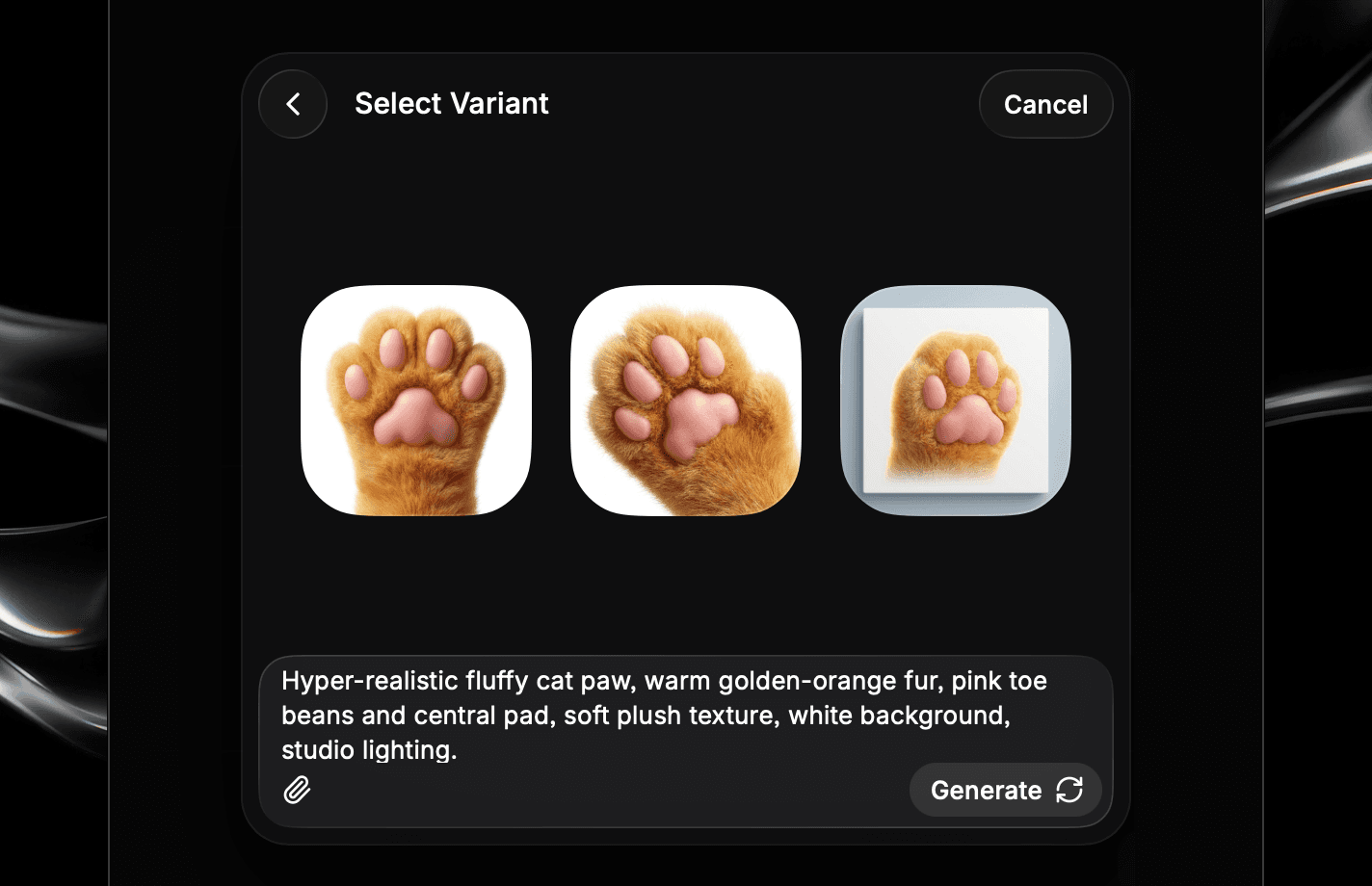
Generating an icon does not use your credits, so try as many as you like until one feels right.
Upload an Icon
If you'd prefer to use your own artwork, click Upload Icon and pick an image file. Glaze crops the image so it sits correctly, then shows a preview you can Save. You can still type a prompt to tweak an uploaded icon before saving.
Once saved, your icon represents the app everywhere it appears: in the Dock and app switcher while the app is running, and on the app's Store listing if you share it. Updating the icon later is the same flow, just open Edit App Icon again any time.